
To get started, log in to the NOQ Backend Portal, go to Stores, and open the store(s) you want to configure for pre-order days.
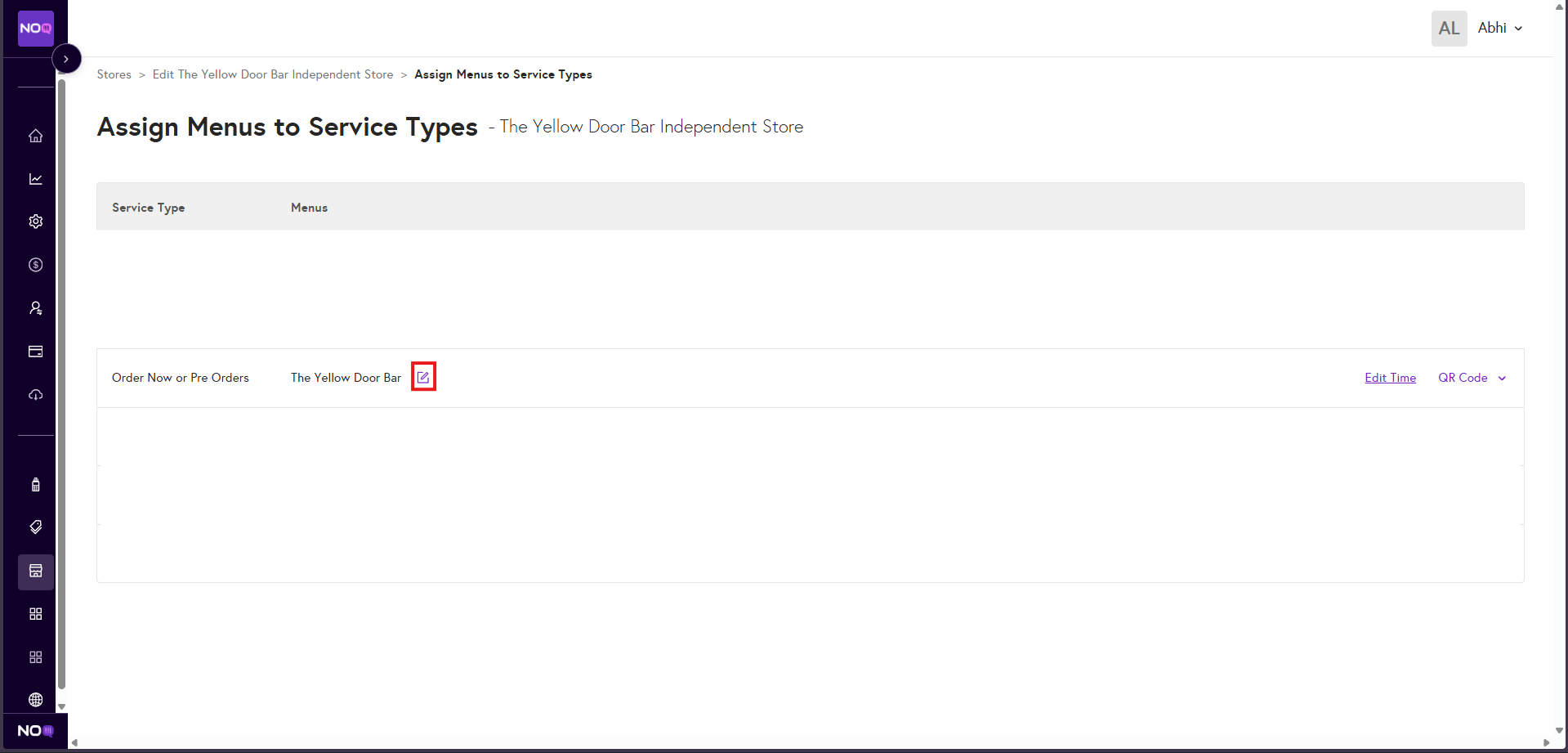
- Select Assign Menus, select the edit button on the end of the menu name.
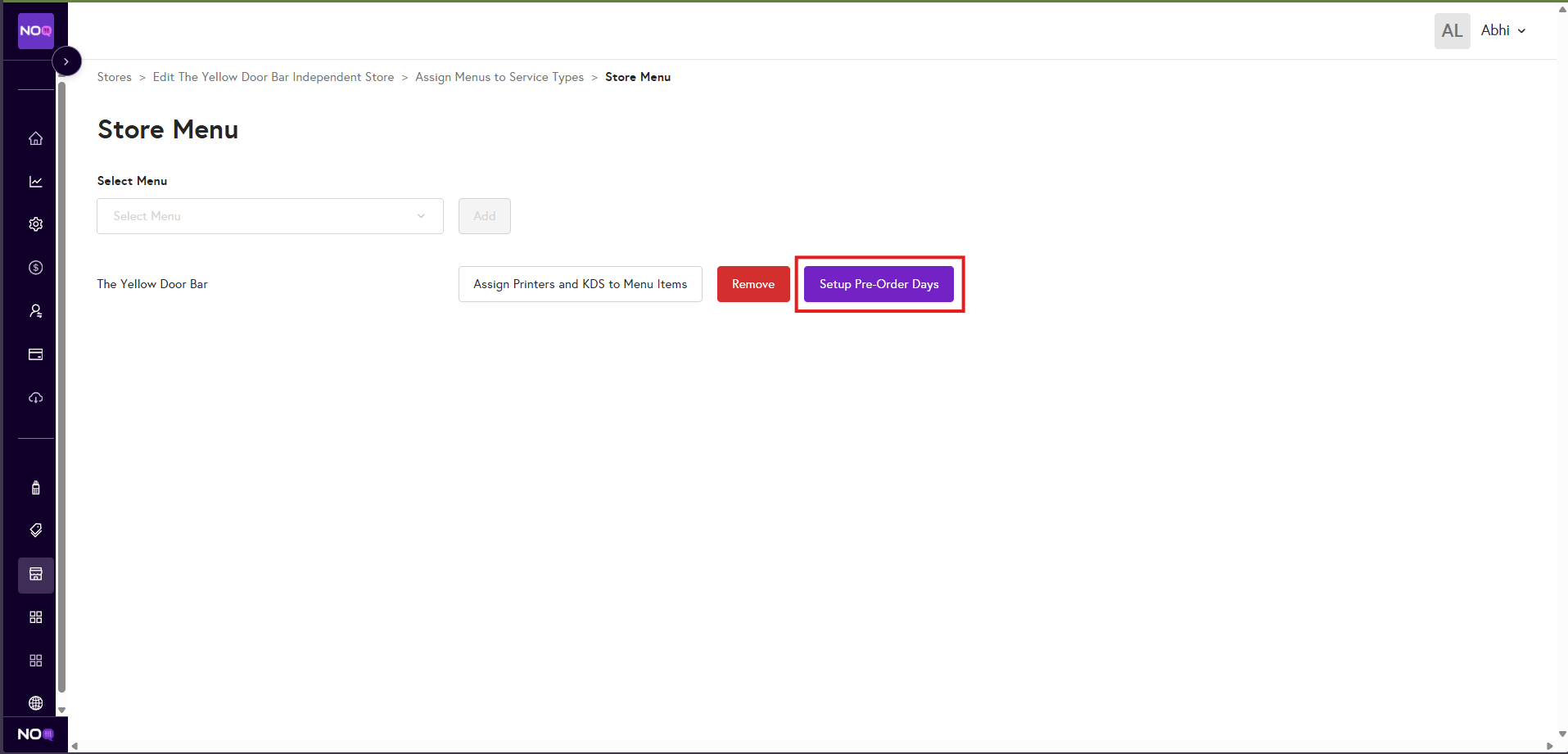
- Select Setup Pre-order Days
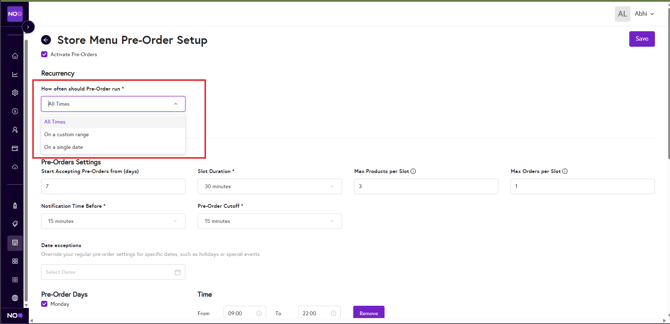
- Select the times for when you want pre-orders functioning
- All times - this is a on going pre-order setup.
- On a single date - Use this for a specific event date you’ve got coming up, so pre-orders are automated just for that day.
- On a custom date range - Use this for a limited period, for example a short-term popup at a venue.
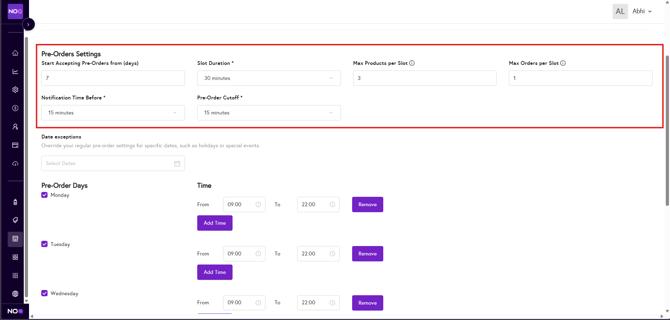
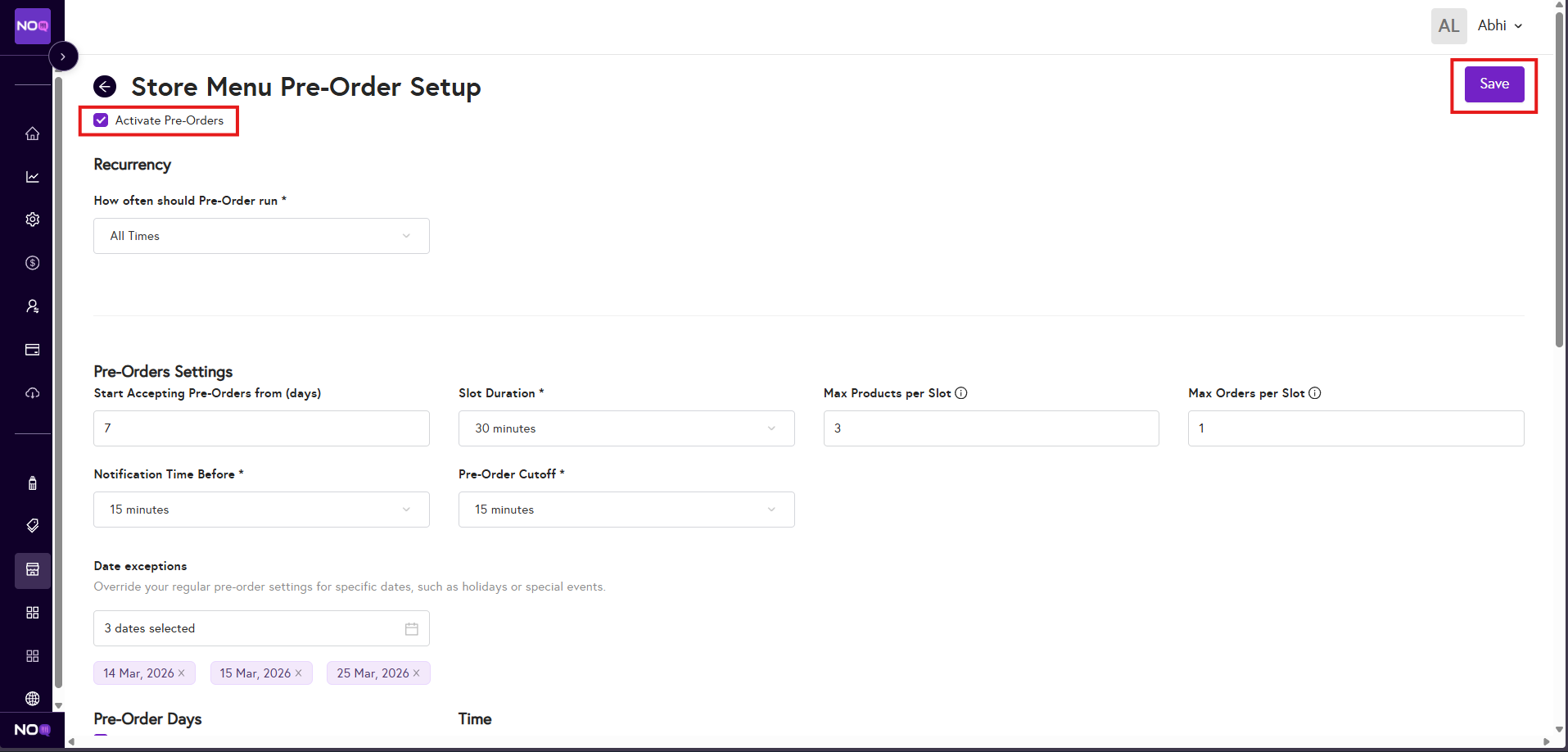
- Setup your Pre-Order settings
- Start accepting pre-orders From the amount of days in advance
- Slot duration The length of slots that you're offering
- Max products per slot Max number of individual products that can be ordered in a single time slot
- Max orders per slot Max number of orders that can be accepted in a single time slot
- Notification time before is what you're notified before the order is due
- Pre-order cut off is how far in advance the cut off is before last orders
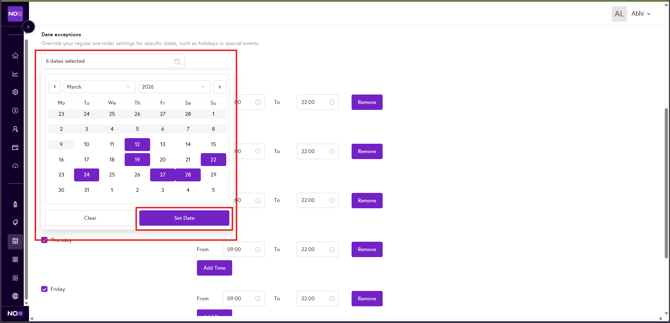
- Date exceptions:- You can select specific dates to exclude from your pre-order schedule. Open the date exception calendar, choose the dates you want to block, and click Set date. Those dates will no longer appear as available pre-order days on the mobile ordering website.
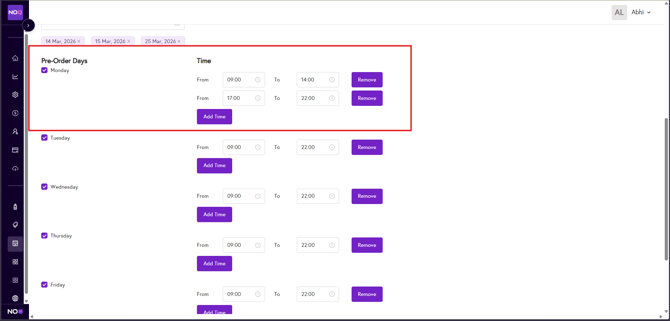
- Set up your pre-order days and times. You can create multiple collection windows throughout the day for when customers can place and collect pre-orders. For example, if your kitchen is closed between 2pm and 5pm, you can set up two separate pre-order time slots to reflect this.
- Once completing the setup, please ensure you are always selecting 'activate pre-orders' and then Save the amendments you make.
What to do if you face availability issues for the pre-orders?
If menu is not showing, follow the below steps to resolve it.
- Ensure that pre-order is activated as described in point 6 and that you have saved your changes.
- Make sure that pre-orders are enabled in the EPOS app. Follow the guide below.
Online Ordering Settings from EPOS