
This guide covers how users can create automated scheduled invoices that can be sent to associated businesses, detailing commission splits and charges applied.
This can be done at a site level, and invoices can be viewed both by the owner of the site, but also the external business associated with that site. Invoices are time limited and only shared with the relevant business contacts.
To generate invoices, follow these steps:
Logging In
Log in to your NOQ Portal using your account credentials.

Navigating to the Transactions Section
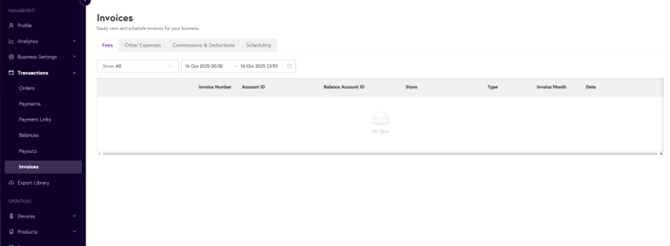
On the left-hand menu pane, navigate to the Transactions section and expand this out. Select ‘Invoices’
Creating a Scheduled Invoice
Within the Invoices portal – you’ll see tabs for the following:
- Fees: transaction fees associated with card payments
- Other Expenses: where manual charges and transfers will generate
- Commissions and Deductions: where invoices related to automated revenue split arrangements will show
- Scheduling: where we can set up custom scheduling of invoices
Move to the scheduling tab, can click ‘Create Invoice Schedule’ in the right-hand corner of the screen to begin creating a scheduled invoice automation

Defining Scheduling Parameters
Automated invoice schedules can be set in one of two states:
- Active: the schedule follows the date and time parameters set during creation
- Paused: the schedule is not currently active
As you begin to create your schedule, the first field you’ll need to fill in is ‘Invoice Name’ – be sure to give this an identifiable and relevant title – e.g. ‘Commission Split’

By default, the Invoice Type will be set to ‘Commissions and Deductions’
Selecting the Site and Stores for Automation
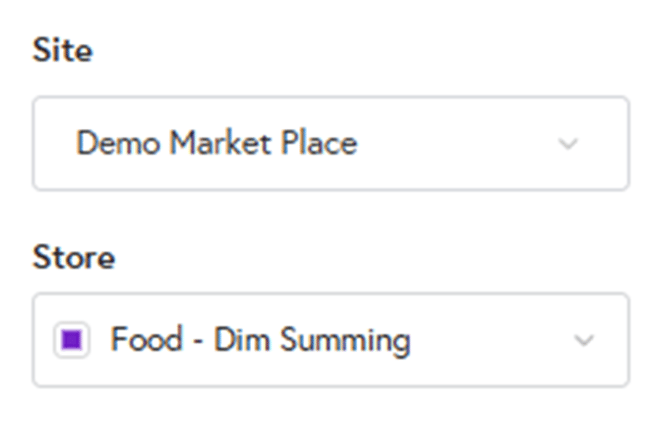
From the relevant drop down menu, first select your site you’d like to create invoices from. The site will define what stores are available for selection
Once you’ve picked your site – select relevant stores – you can either select all, or tick boxes individually
Setting Occurrence and Duration of Schedules
Next, we can define the occurrence of invoices – and we can select either daily or weekly options from the drop down menu
We can then define our start date for invoicing by selecting from the calendar view, and do the same to define when our schedule will run to under Active Until.
Lastly – we can pick the time that our invoice will be generated using the selectors in the Time box.
For example – if you select a daily invoice schedule, running from 18th October until 17th of April 2026 and it generates at 17:00:00 – your selected stores will receive an invoice each day between 18th October and 17th April at 5pm.
Please note – the maximum period you can automate an invoicing schedule for is 6 calendar months.

Defining Recipients
Next, we must define who will receive the invoices – there are two options here:
- Business Email Recipients – the registered business email will receive the invoice via email
- Additional Email Recipients – you can add custom emails you’d like to receive the invoices.
To email invoices to business email recipients, simply toggle this option on – if this is not toggled on, they will still be able to access generated invoices within the the portal – they just won’t receive them via email
To add additional email recipients – simply type their email into the box and press Tab or Enter to confirm your entry.

Once you are happy with your settings – click ‘Create Invoice Schedule to activate your automation
Managing Created Schedules
Once a schedule has been created, you can manage and amend the invoice schedule to either:
- Edit the schedule parameters
- Pause the schedule
- Delete the schedule
To do this, navigate to the Transactions section and select Invoices – move to the scheduling tab.
Select the line for your valid schedule, and click the three dots icon to the right-hand side:
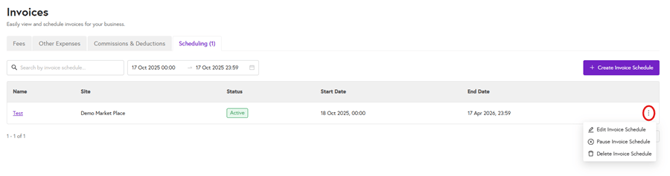
Select an option to manage the schedule appropriately