
Offline Profiles are a feature only available to users if Offline Payment settings have been configured as part of your business setup. If you require access to this feature – reach out to either your Account Manager, or via our Support Helpdesk to discuss this
This guide walks customers through the process of setting up offline profiles in the NOQ Portal. Follow each step carefully to ensure that profiles are configured correctly even when internet access is unavailable.
Logging In
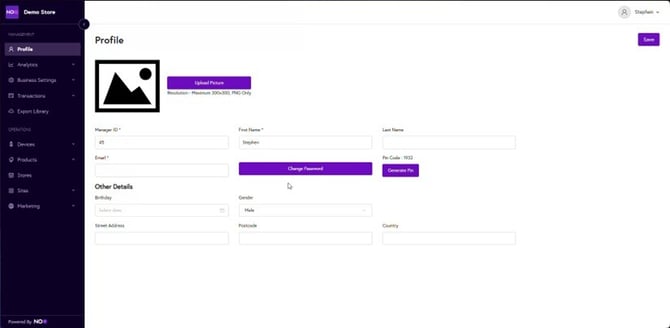
Log in to your NOQ Portal using your account credentials.
Navigating to Device Profiles
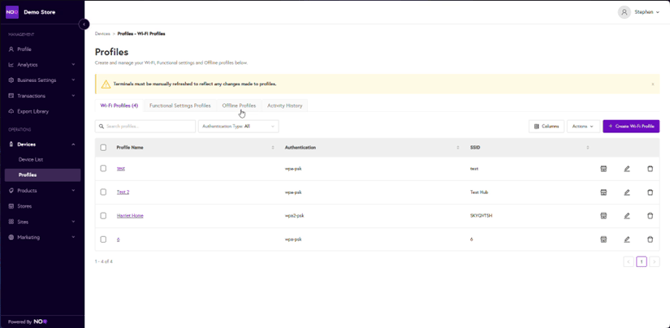
From the main dashboard menu, navigate to the 'Devices’ section, and select ‘Profiles’
Click on the tab for ‘Offline Profiles’
Setting up a new Offline Profile
Here you will see any previously created profiles for offline sales. If you’d like to create a new profile, select the purple 'Create New Profile' in the top right of the screen to begin.

Defining Profile Parameters
As you begin to set the profile, you’ll see fields for:
- Profile Name: this is a name you assign to the profile itself (ie/Test Profile)
- Types of Card: the types of bank card that can be accepted for offline payments
Please note – the types of cards allowed are defined as part of the administrative setup of this feature.

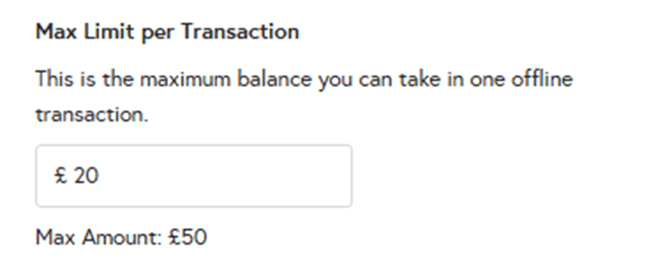
Setting a Maximum Limit Per Transaction
The next field sets the ‘Maximum Limit Per Transaction’ – this is the amount a customer can spend per transaction in offline mode
Please note – the maximum value allowed here is defined as part of the administrative setup of this feature.
Setting a Maximum Number of Transactions
The next field sets the ‘Maximum Number of Transactions’ – how many transactions you can take while offline
Please note – the maximum value allowed here is defined as part of the administrative setup of this feature.

Setting a Maximum Amount That Can Be Taken Offline
The next field sets the ‘Maximum Amount That Can Be Taken Offline’. This number applies to each device, so if you have 3 terminals, each terminal will be able to take this amount offline.
Please note – the maximum value allowed here is defined as part of the administrative setup of this feature.
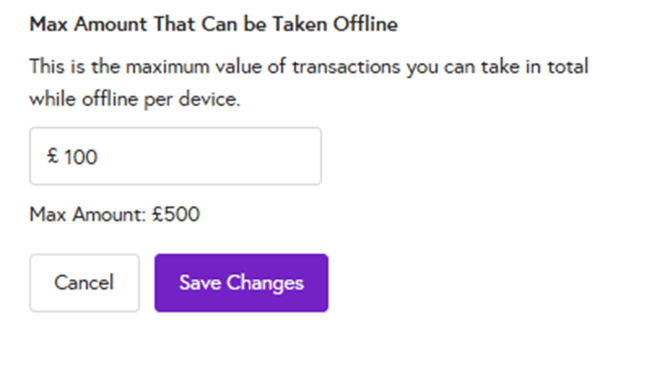
Once all these fields have been completed – click ‘Save Changes’ to navigate back to the Profile List view.
Applying Offline Profiles to Stores
Once back at the Profile List dashboard view – click the three dots to the right-hand side of your Profile.

This will pop out an additional window with the following options:
- Edit Offline Profile: this reopens the setup view, and you can edit all previously set parameters
- Duplicate Offline Profile: this creates a copy of the profile, which you can then edit and amend for other uses
- Assign to Store: this allows you to select which stores you’d like to assign this profile to
- Delete Offline Profile: removes the profile from your platform
When assigning to a store, you’ll see a list of all the stores associated with your business pop out to the right-hand side of the screen.
Simply tick the boxes for all relevant stores you’d like to apply this profile to and click ‘Assign Stores’ to confirm.
