
- Navigate to Product > F&B Products > Master Stock List > Items
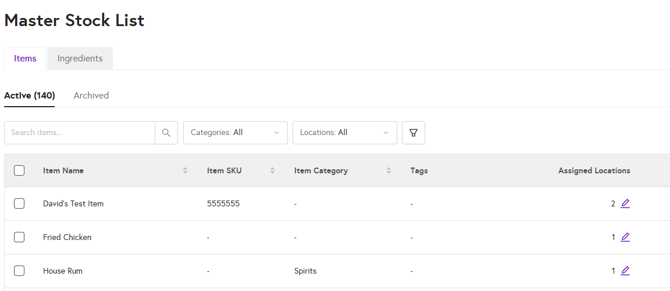
- Select the Pencil icon in the Assigned Locations column for the item you want to assign, which will open the location selector.

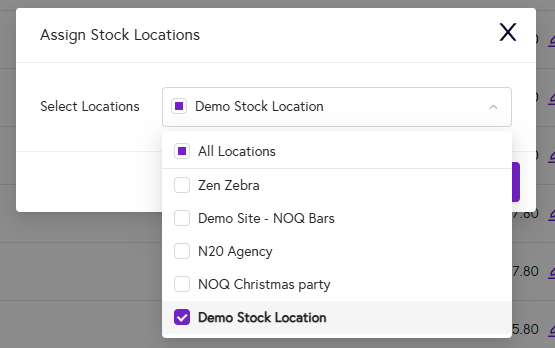
- Select the Location(s) you wish to assign the item, then click Assign to close the box. The item will now be assigned to the selected stock location(s).
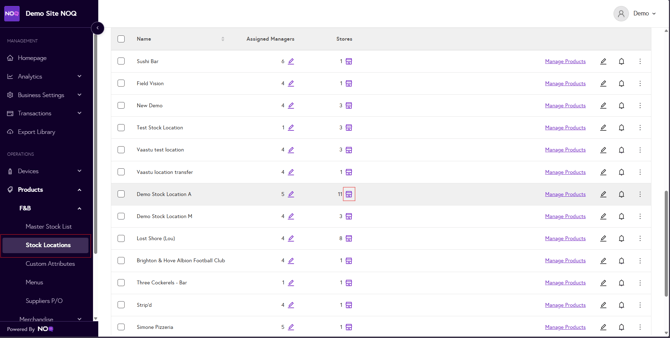
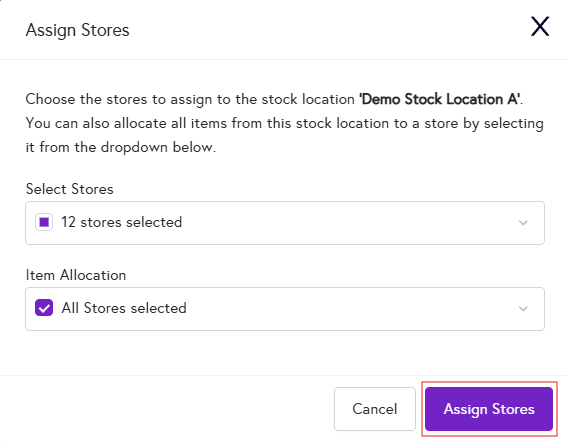
- From the sidebar, navigate to Products > F&B > Stock Locations. Click on Store Icon to assign store to stock locations.
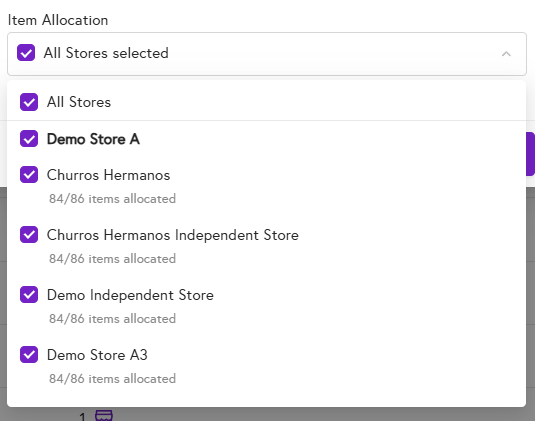
- You will see two drop-downs.
- From the Select Store drop-down, choose the store you want to link, and it will be assigned to the selected stock location.
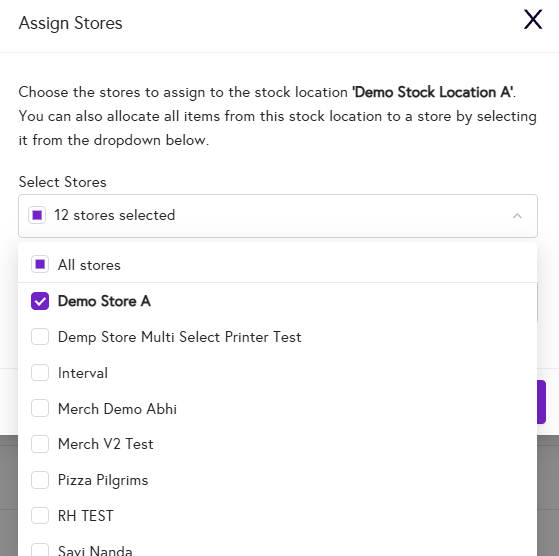
- From the Item Allocation drop-down, select the store to assign all existing items to that store. Any new items you create will also be assigned to the selected store. Only stores chosen in the Select Store drop-down will be available in the Item Allocation drop-down.
- After selecting the relevant stores from both drop-downs, click Assign to link those stores to the chosen stock locations.
'
- From the Select Store drop-down, choose the store you want to link, and it will be assigned to the selected stock location.
To learn how to -
-
Bulk Upload Items click here.
- Bulk Upload Ingredients click here.