
Page Overview:
Transactions - Orders
How to Access Transactions
- In the portal, open the sidebar menu.
- Navigate to Transactions → Orders.

Viewing and Filtering Orders
On the Orders page, you’ll see a list of all transactions. You can refine your view using filters on the top or side panel.
Available Filters:
- Timeframe - Filter orders by specific dates or ranges.
- Source - View transactions by their origin (e.g., EPOS app, online, merchandise, etc.).
- Sites / Zones / Stores - Narrow results by location hierarchy.
- Status - Filter by payment or fulfillment status.
- And more!

Search Options
In addition to filters, you can search using:
- Order Number
- Card Number
- Total Sales

This allows quick retrieval of individual orders or groups of related transactions.
Exporting Transactions
Need to review transactions externally?
Click the Export CSV button on the right-hand side to download a full list of filtered transactions in bulk.

Viewing Order Details
To explore a specific order, click on it from the list.
A side drawer will appear showing full order details, including customer info, payment details, and items purchased.

From the order details drawer, you can:
- View Items - See the list of products included in the order.

- Go to Payments - Review the related payment transaction.

- Process a Refund - Initiate a partial or full refund for the order.

Tips & Notes
- Use the filters first to reduce your data before exporting CSVs - this improves download speed.
- Refunds can only be processed for completed or partially completed transactions.
- Order details update in real time when payments or refunds are processed.
Transactions - Payments
How to Access Payments
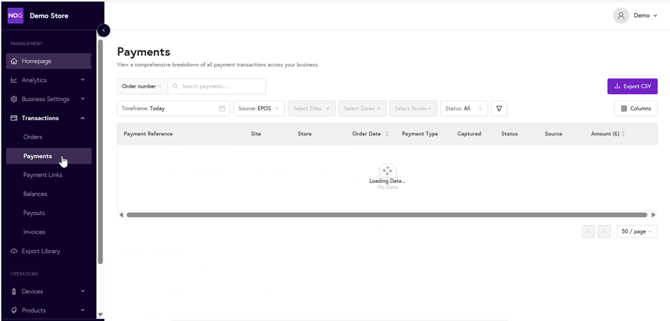
In the portal sidebar, locate the Transactions menu.
Click the dropdown and select Payments.
Viewing and Filtering Payments
On the Payments page, you’ll see a list of all payment transactions.
Use the filter options to narrow down the results to specific criteria.
Available Filters
- Timeframe - Filter by specific dates or ranges.
- Source - Identify payments from POS, online, or kiosk sources.
- Sites / Zones / Stores - Filter by location hierarchy.
- Status - Show completed, pending, failed, or refunded payments.
- And more!

Search Options
After setting your filters, you can also search using key details like:
- Order Number
- Card Number
- Total Sales

This makes it easy to find specific payments quickly.
Exporting Payment Data
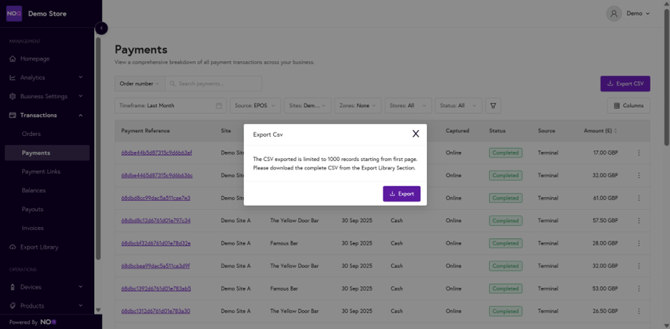
You can export your filtered payment results as a bulk CSV file for external review or reporting.
To do this, click the Export CSV button on the top-right of the screen.
Viewing Payment Details
To review a single payment, click on the payment record in the list.
A side drawer will open, displaying key details such as:
- Source
- Payment Date / Time
- Payment Method
- Amount
- Associated Order

From the Payment Details Drawer, You Can:
Go to Order - Opens the linked order transaction for more context.

Process a Refund - Initiate a full or partial refund for the selected payment.

Tips & Notes
- The Go to Order link is helpful for reconciling payments with their related sales transactions.
- Always confirm refund amounts before submitting - refunds are final once processed.
- Use filters to limit your export size for faster CSV generation.