
1. Log in to the NOQ Portal.
2. From the sidebar, go to Analytics 📈> Sales Reports > Summary. Click on the Stores.

3. From the first dropdown, select the Store. Then choose the timeframe you want the report for - Day, Week, Month, Year, or a custom date range. Click on Generate to create the summary report.

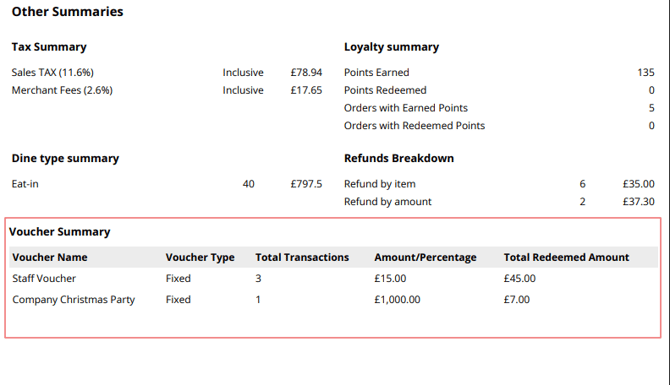
4. Switch to the Other Summaries tab and scroll to the bottom of the page to view the Voucher Summary.

-
- Voucher Name: The name of the voucher that was redeemed.
- Voucher Type: The type or category of the voucher redeemed.
- Total Transactions: The total number of transactions made using this voucher.
- Voucher Amount / Percentage: The discount value of the voucher, shown either as an amount or a percentage depending on the voucher type.
- Total Redeemed Amount: The total value redeemed using this voucher during the selected period.
5. You can see the voucher summary in both a PDF and a CSV file. To see the voucher summary in a PDF or CSV file, go to the Sales Summary tab and click Download PDF or Export CSV Transactions.

-
To view the voucher summary in a PDF, scroll down to the Other Summaries section and see the voucher summary from there.
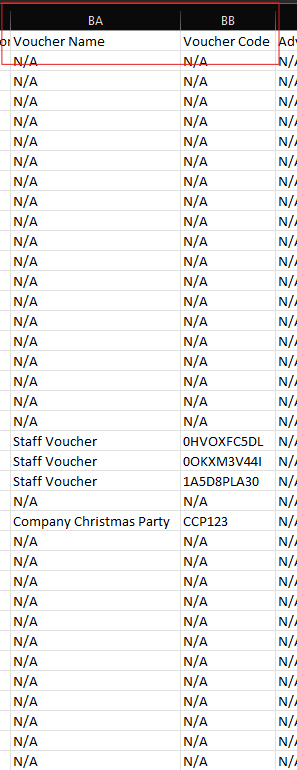
- To view the voucher summary in a CSV file, open the exported CSV and look for columns BA and BB, which show the Voucher Name and Voucher Code.
6. Go back to the Sales Summary page and click on Sites.

7. From the first dropdown, select the Site. Then choose the timeframe you want the report for - Day, Week, Month, Year, or a custom date range. Click on Generate to create the summary report.
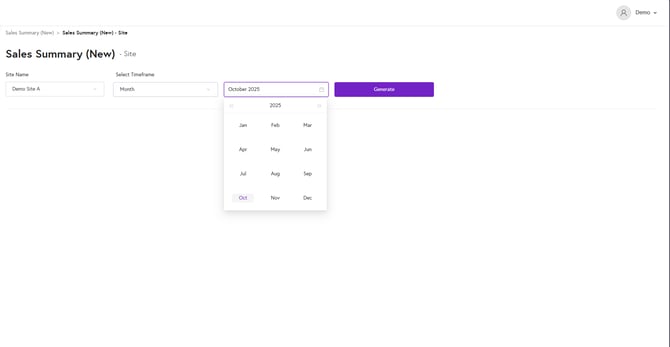
After generating Sites sales summary, steps are same as Stores sales summary to view the voucher breakdown.