
Step 1: Navigate to the Menu Page and Select Your Menu
- Log in to the NOQ Backend Portal.
- Go to Products ➡️ Menus.
- Click Manage Items on the menu you want to edit.
Step 2: Creating Groupings and Categories
Your menu structure may follow one of two formats:
- Grouping ➝ Categories ➝ Items
- Categories ➝ Items
Depending on your menu structure, you will see either an Add Grouping or Add Category button.
If you see "+ Add Grouping"
- Click + Add Grouping, enter a name (e.g., Food or Drinks), then click Save.
- Click the + button next to the grouping to add a category (e.g., Spirits or Snacks), then click Save.
- Repeat this process until all necessary categories are created.

If you see "+ Add Category"
- Click + Add Category, enter a name, then click Save.
- Repeat this process until all necessary categories are created.

Step 3: Adding Items to the Menu
- Click the + button next to a category to open the Add Item panel.
- Search for the item or click Show All Items to browse.

- Select the items you want to include in the category, then click Assign.

The Add Item panel will display the selected items along with their default prices.
Price Adjustments
- You can adjust the item price here, but changes will only affect this specific menu.
- The base item price in your Item List will remain unchanged.
- Modifier prices can also be adjusted at this stage.
For example, if you offer discounted prices on Sundays, you can set those prices here without affecting other menus.
Step 4: Finalizing Your Menu

- Once all categories are populated with items, click Save.
Step 5: Updating the Menu
- Click on Manage Items to edit the menu.

- Click on Pen 🖊️ to edit category items.
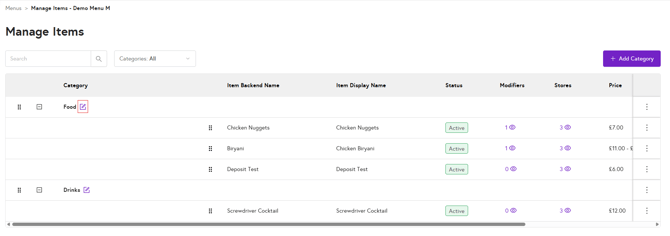
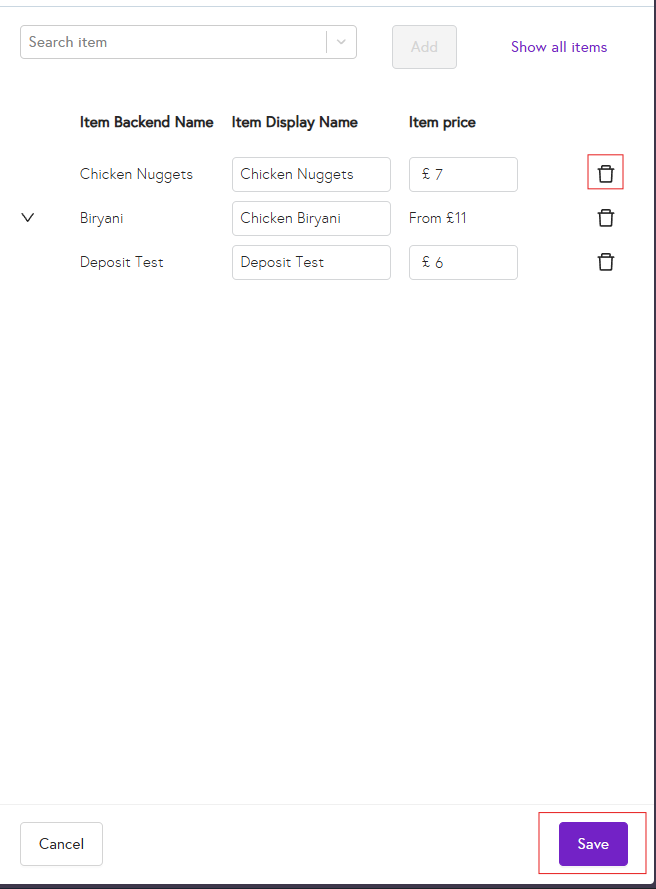
- To add items, repeat step 3. Click on Trash 🗑️ to delete the item. Click on Save to save changes.
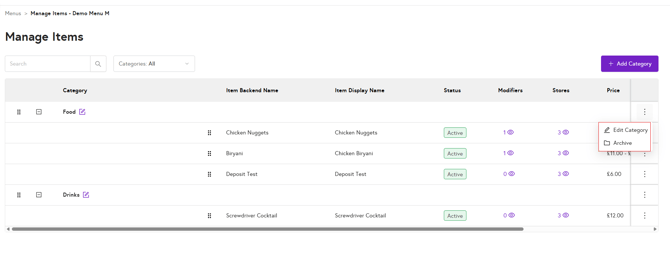
- Click on Edit Category to change category name. Click on Archive to archive the category.
- When you archive a category, it remains visible in the NOQ Backend Portal but will no longer appear in the EPOS app or web app. You can either Unarchive the category to make it visible again or permanently Delete it.
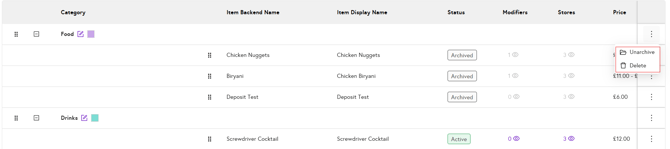
- ⚠️ Deleting a category or items will permanently remove them from your menu. Please delete categories or items with care.
- To see any menu changes, tap the Refresh ⟳ button in the EPOS app or refresh the web app.
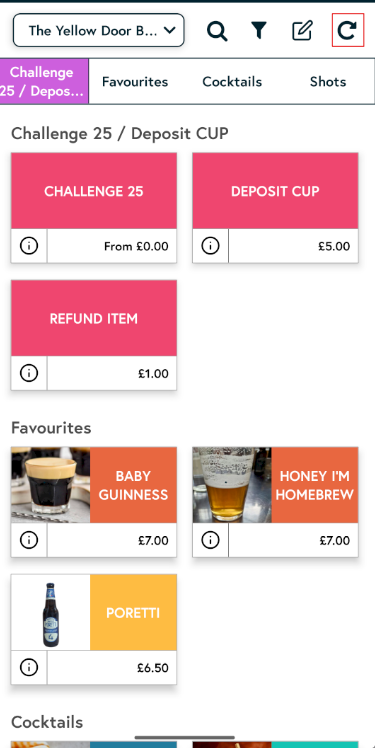
What to do if your menu category or menu items are not showing in the EPOS app or web app?
If your items aren’t appearing, follow these troubleshooting steps below to resolve the issue:
- Make sure you’re connected to a stable internet network, then refresh the page. If the issue persists, close the app completely and log back in.
- Confirm that the correct menu is linked to the relevant service type. Follow the guide below for reference.
- Make sure that you have assigned items to the store. Use the guides below as a reference.
- If your menu category or items are not showing on the EPOS app or web app, first check whether they have been archived or deleted.
If they have been archived, simply unarchive the relevant category or items.
If the category has been deleted, you’ll need to create a new category and then re-add the required items to that newly created category.