
Step 1: Navigate to the Menu Page
- Log in to the NOQ Backend Portal.
- Go to Products ➡️ Menus.
- Click Create Menu.
Step 2: Complete the Create Menu Form

Fill in the required fields:
-
Create Menu from Stock Location (only if the Stock Location module is active)
- Allows you to build a menu using items from a specific Stock Location.
-
Select Menu Structure
- Grouping ➝ Categories ➝ Items (More hierarchical)
- Categories ➝ Items (Simpler structure)
-
Menu Backend Name
- Internal name for reference.
-
Menu Display Name
- The name visible to customers and on your EPOS application.
-
Dietary Tags (Optional)
- Choose to display dietary tags such as Vegan, Halal, or Gluten-Free.
-
Menu Short Description (Optional)
- A brief internal description of the menu.
-
Menu Type
- Paid (Default): Standard menu.
- Pre-paid Products: Menu for prepaid items.
Step 3: Save Your Menu
Once all fields are filled, click Save to finalize the menu.
Before saving, remember to check every field, as some field like Menu Structure and Menu Type can't be changed.
Step 4: Updating Menu Details
- If you want to edit Menu details, click on the Pen 🖊️ icon for the menu you want to edit.

- You can see some options are disabled which you cannot change. Other options like Menu Backend Name, Menu Display Name and so on can be change.
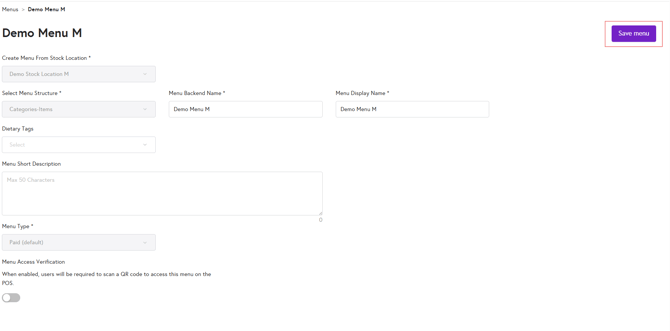
- After making changes, click on Save Menu to publish changes.
- To add/remove items in the menu follow this guide - How to Edit Items on Menu
Next Step
Now that you have created a menu, you can start adding your items to it. Read on to learn more!