
To create a new store, navigate to the NOQ Backend Portal.
Step 1: Navigate to the Business Page
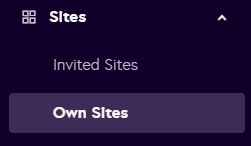
- Go to your Business page and select Sites-> Own Sites.
- You will see two options:
- Owned Sites: Sites owned and operated by the business.
- Invited Sites: Sites where the business has been invited to operate.
Step 2: Create a New Site
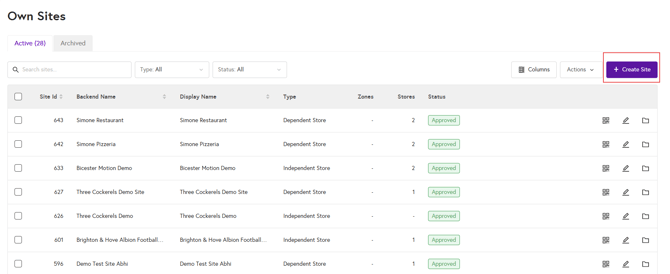
- Click Create Site to open the new site form.
Step 3: Set the Site Category
Choose a site category from the following options:

-
Geographical Area:
Used to group independent stores based on geographical proximity. Customers can scan a QR code to find the nearest store using their postcode. (Only independent stores can be assigned to this category. Split arrangements are not available.) -
Independent Stores Site:
Groups independent stores for unified reporting and online visibility. Each store manages its own settings (e.g., tables, mobile ordering). (Only site-independent stores can be assigned. Split arrangements are not available.) -
Dependent Stores Site:
Represents shared spaces (e.g., music festivals, theaters) where multiple stores serve customers. Site-level settings are mirrored across stores. (Only site-dependent stores can be assigned. The Activate Split Arrangement option is available for this category.)
Step 4: Complete the Site Form
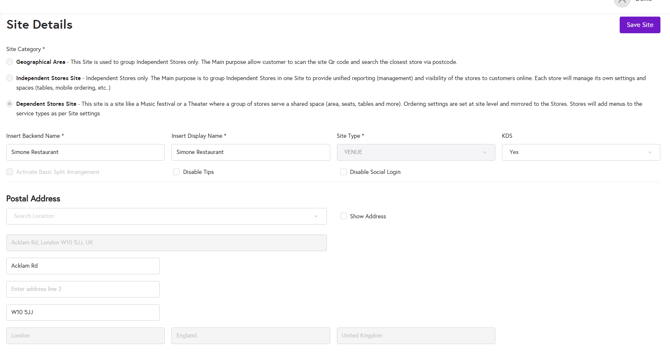
Fill out the following fields:
- Backend Name: The internal name of the site (not visible to customers).
- Display Name: The name displayed to customers.
- Site Type: Define the type of site:
- Venue: A permanent fixture
- Event: A temporary location for a set period. (If selected, date range fields will appear.)
- KDS: Indicate whether the site will use a Kitchen Display System (Yes/No).
- Disable Tips: Select this option to disable tipping for this site.
- Disable Social Logins: Prevent customers from logging in using social media credentials.
Step 5: Save the Site
- Click Save Site to finalize the setup.
- You will be returned to the Site menu.