1. On your terminal, click on the EPOS v3 app icon.
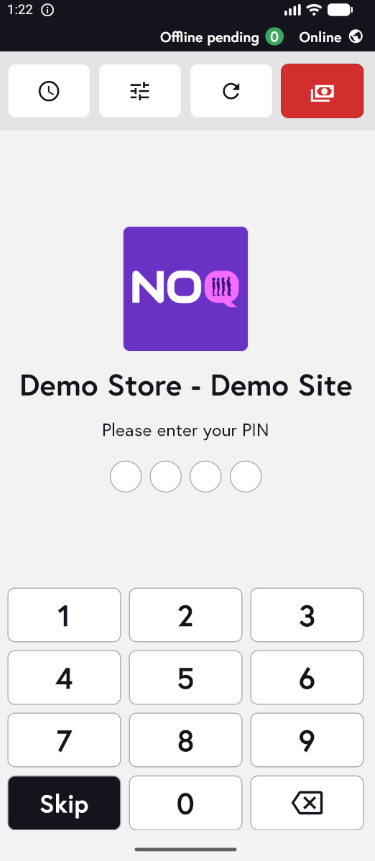
2. When the app opens, you will see the welcome screen. Either tap ‘Skip’ or enter your PIN (if you have one) to continue into the app.
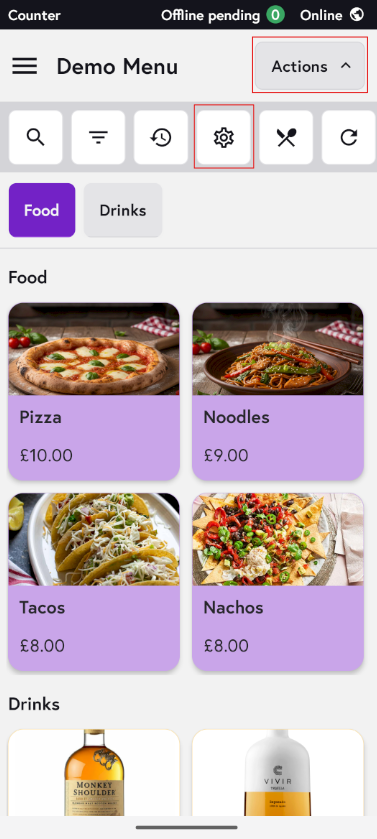
3. Click on Actions and then Settings Icon.
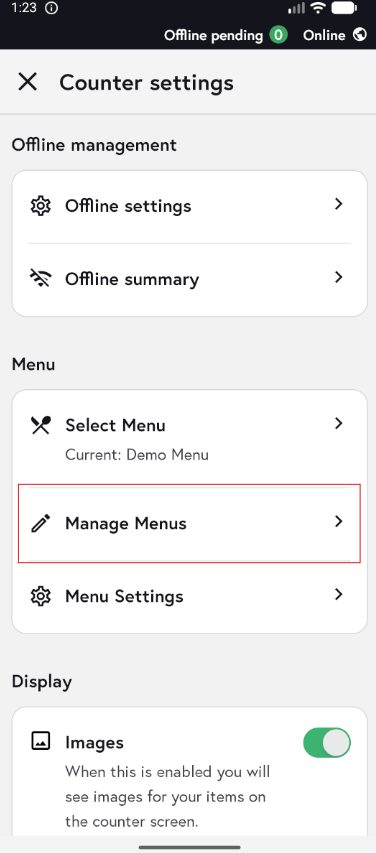
4. Click on Manage Menus.
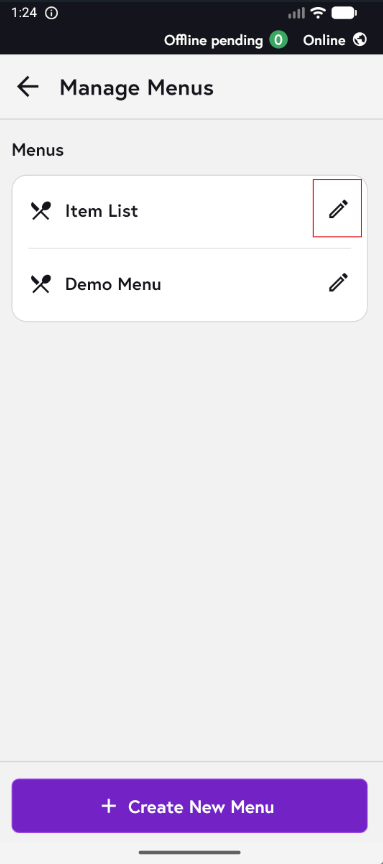
5. Click on the pencil Icon for Item List to add any item.
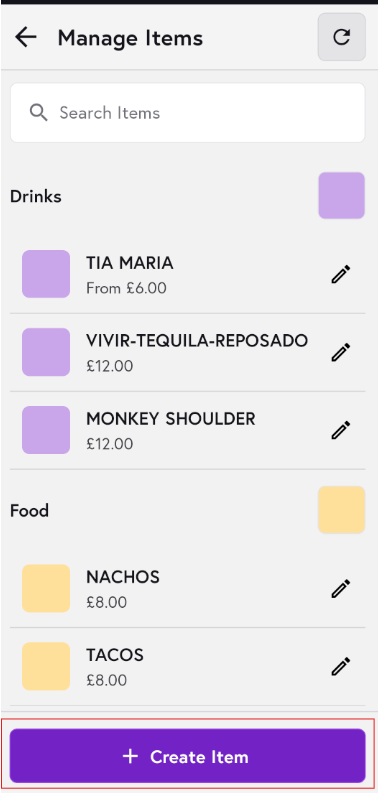
6. Click on Create Item.
7. Fill in Item Details:
- Add the Item Name & Price:

- Add the item color, include an item description if needed, and apply any relevant taxes in the customisation section.

- Add the modifier or any custom attributes if needed, assign the item to a printer by ticking the checkbox, and assign it to a KDS group if required. When everything is complete, click Save.

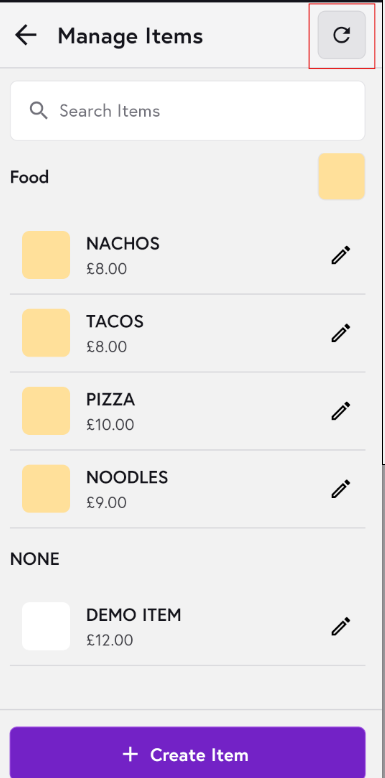
8. Once you have saved the item, refresh the terminal using the small red button shown in the screenshot below. You can also search for it using the search bar to check it has been added correctly. The item will then appear in the Item List, and you can assign it to your menu.
To learn on how to add items to your menu click on this guide here.