
1. On your terminal, click on the EPOS v3 app icon.
2. When the app opens, you will see the welcome screen. Either tap ‘Skip’ or enter your PIN (if you have one) to continue into the app.
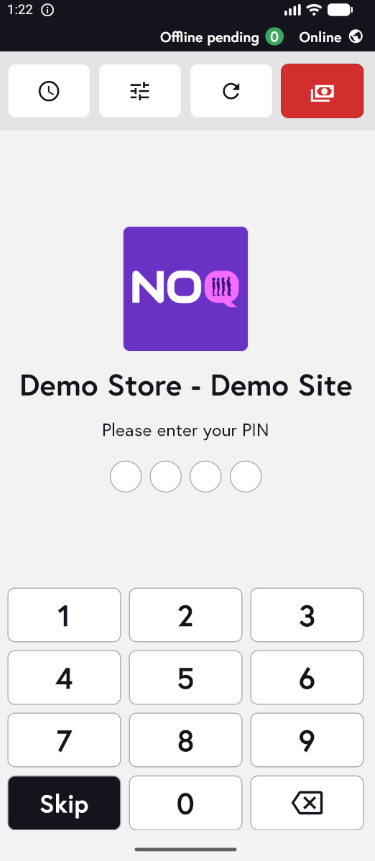
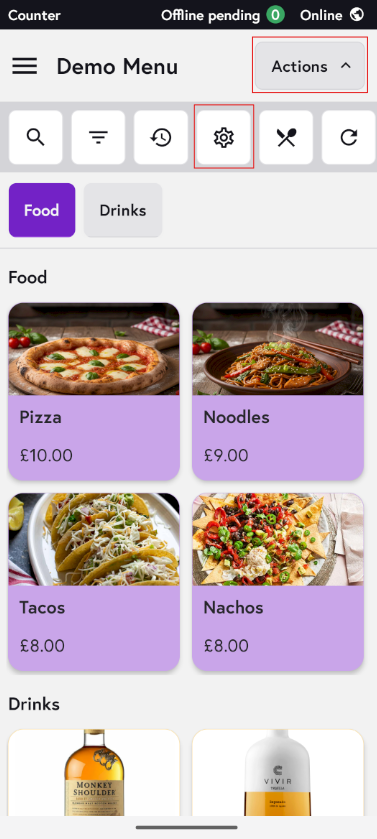
3. Click on Actions and then Settings Icon.
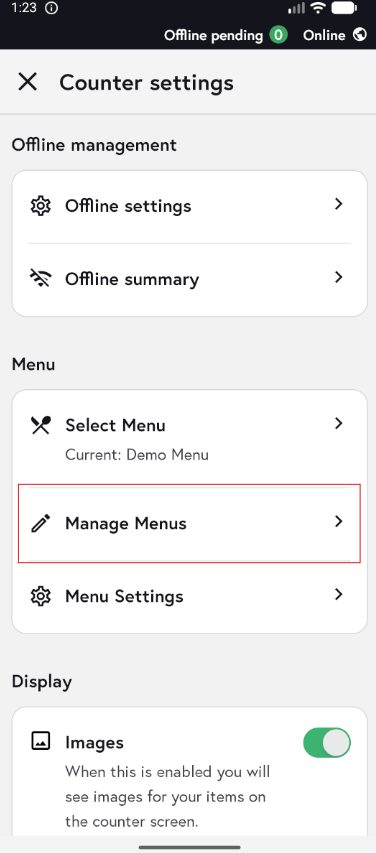
4. Click on Manage Menus.
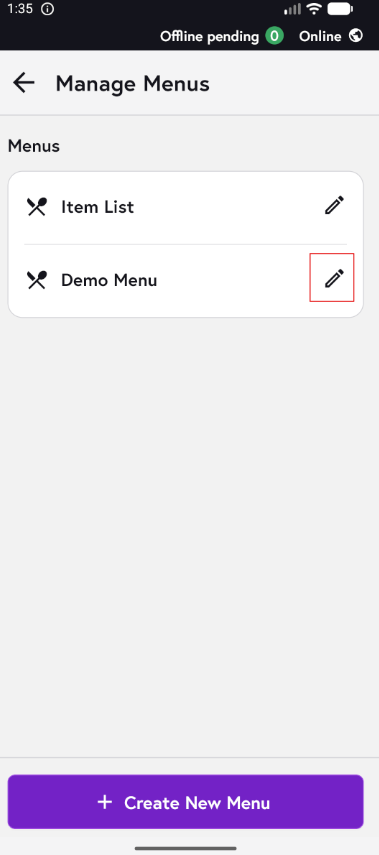
5. Click on the pencil Icon for the Menu to edit any item on the Menu.
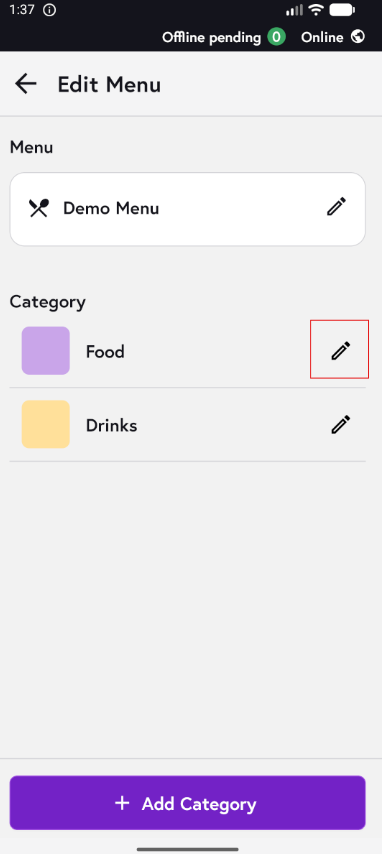
6. Click on the edit icon for the category you would like to add the items to.
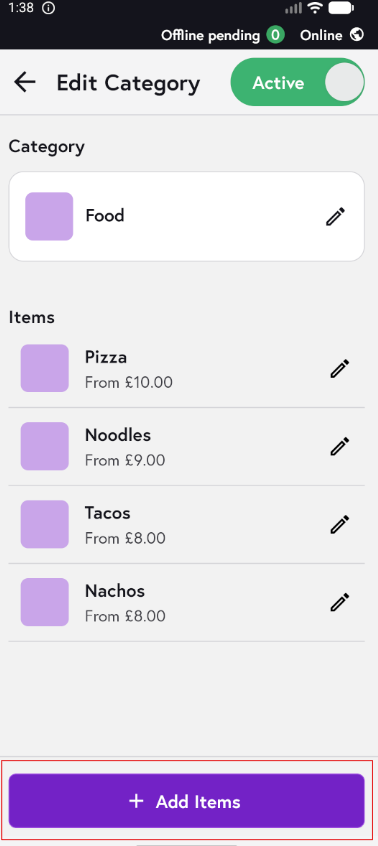
7. Click on Add Items Button on the bottom of the screen.
8. To add items, search for them using the search bar, tick the checkbox next to each item you want to add, then click Save at the bottom of the screen. Please refresh the app to see the updated changes.

9. For filtering by category, click the filter button on the top right of the screen, select the relevant category, and the list will automatically update to show only items in that category.
Example: I have selected category 'Food' and only Food show up.

Note: You can also create new items from this screen by clicking the ‘+’ icon in the top-right corner (as shown in the screenshot above). For detailed steps on creating items and how to complete each field, please follow the point 7 in this guide here.