
Each manager can access the back-end portal using their email address This functionality enables the admin to monitor user activity and identify specific actions taken by each manager. Additionally, the admin has the ability to assign various permissions to individual managers, tailoring access based on their roles and responsibilities.
NOTE: Only the admin can create manager logins.
1. From the sidebar, navigate to User Management > Managers. Click on +Create Manager.
2. You will see following fields.
- Profile
- Email Address: Email Address of the Manager which can be use to log into the portal.
- Phone Number: Phone number of the Manager (Optional)
- First Name: First Name of the Manager
- Last Name: Last Name of the Manger (Optional)

- Permissions
- Manager Role: Select the appropriate role for the manager from the drop-down list. If needed, you can create a new role by clicking on ‘Create a new manager role’.
- Sites: You can assign a manager to multiple site (optional). To automatically assign this manager to any new sites created in the future, select the checkbox ‘Add to any future site created’.
- Store: You can assign a manager to multiple store (optional). To automatically assign this manager to any new store created in the future, select the checkbox ‘Add to any future store created’.
- Stock Location: You can assign a manager to multiple stock location (optional). To automatically assign this manager to any new stock location created in the future, select the checkbox ‘Add to any future stock location created’.
- Merch Locations : - You can assign a manager to multiple merch location (optional).

- Staff Settings
- Hourly Rate: This field captures the amount paid per hour and is linked to the employee's clock in/out records, ensuring accurate calculation of their earnings based on the total hours worked. This is optional.
- PIN: You can either create a 4-digit PIN of your choice or click on ‘Generate PIN’ to have the system create one for you. This is optional .
- After completing all the fields, click on ‘Create Manager’ to add the new manager.

3. After creating the profile, click on the three dots next to the manager to either view their details or remove them from the business.
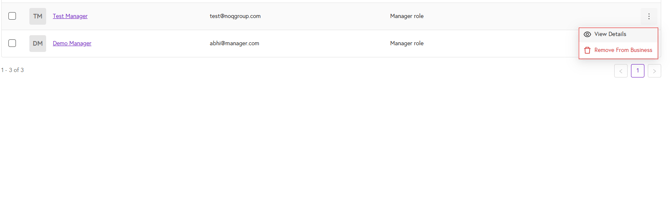
4. Click on View details to open the Manager Details sidebar. From here, you can update Permissions and Staff Settings by clicking on the pencil icon.

Not sure how to create a manager role? Click the link below to learn how.