
1. On your terminal, click on the EPOS v3 app icon.
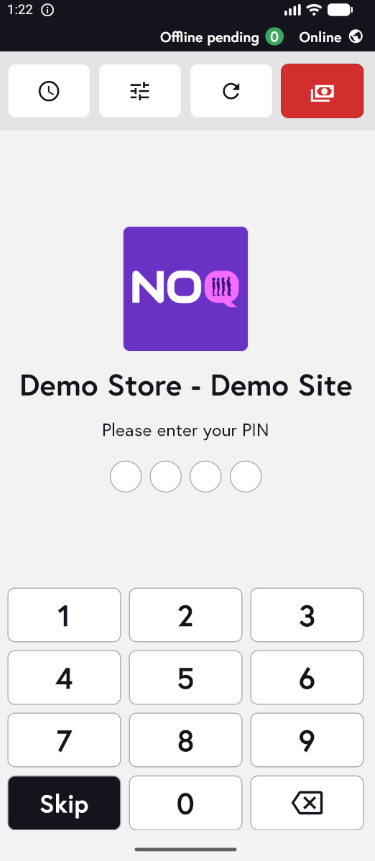
2. When the app opens, you will see the welcome screen. Either tap ‘Skip’ or enter your PIN (if you have one) to continue into the app.
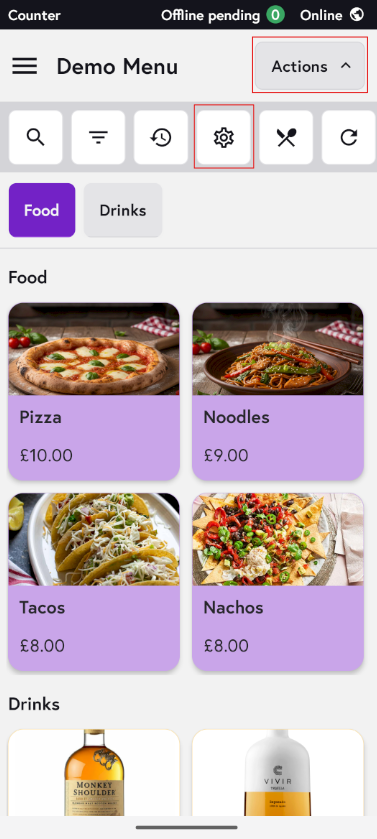
3. Click on Actions and then Settings Icon.
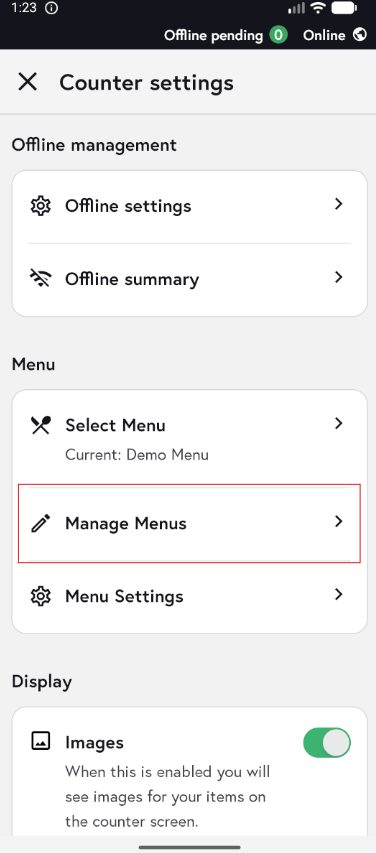
4. Click on Manage Menus.
5. Click on + Create New Menu to add a new menu.

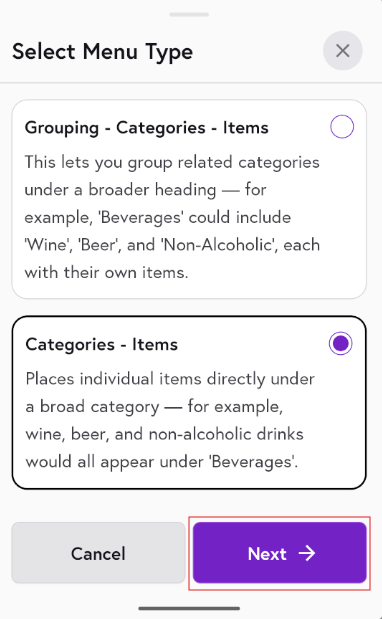
6. Choose the Menu type. Click on Next to continue.
-
Grouping ➝ Categories ➝ Items (More hierarchical)
-
Categories ➝ Items (Simpler structure)
7. Enter the menu name you want, then click on Create Menu to create the new menu.

8. Click on + Add Category to create a new category.

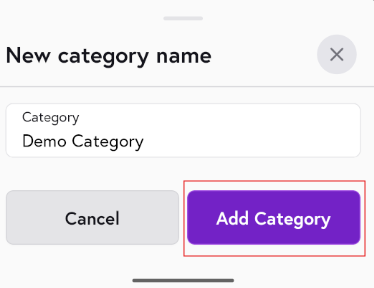
9. Enter the category name you want, then click on Add Category to create new category.
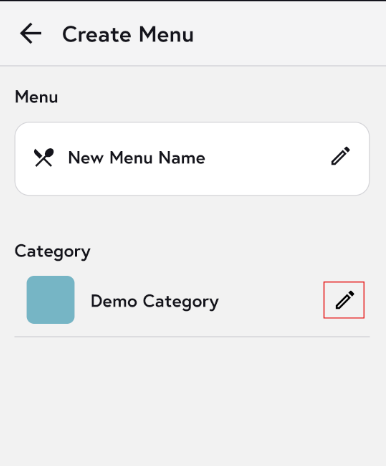
10. Click on the pen icon for the newly created category to edit the category.
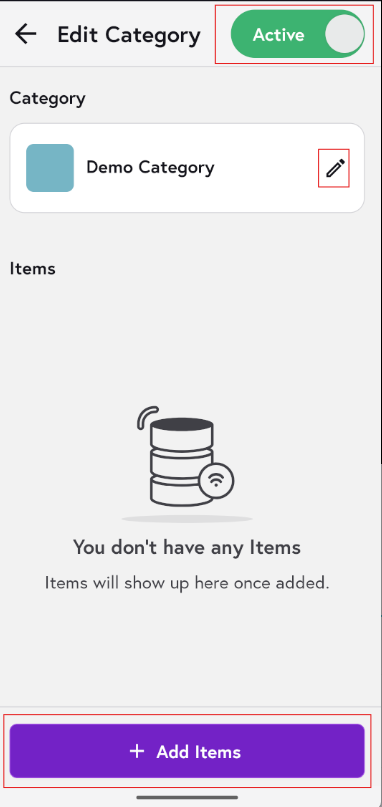
11. To hide a category, click on Active. Click on the Pen🖊️ icon to edit the category name. Click on + Add items to add items to the category.
12. You will see a list of items. Tick the checkbox next to each item you want to select, then click Save to add the selected items to the category. To create a new item instead, click on the + (Plus) icon in the top-right corner.

Use the link below to learn how to create a new item in the NOQ EPOS v3 app.