
1. On your terminal, click on the EPOS app icon.
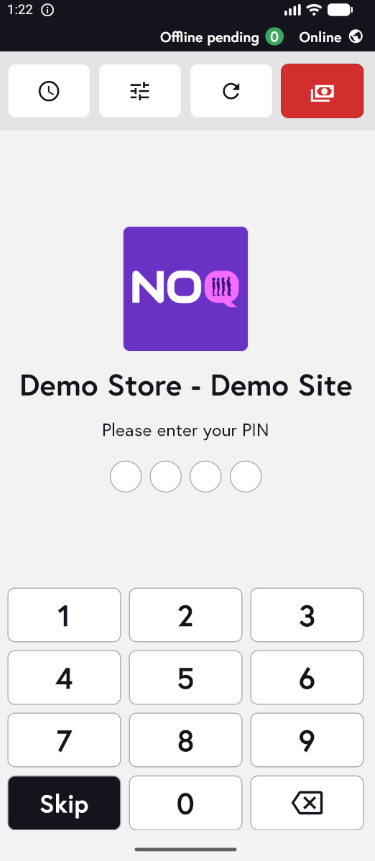
2. When the app opens, you will see the welcome screen. Either tap ‘Skip’ or enter your PIN (if you have one) to continue into the app.
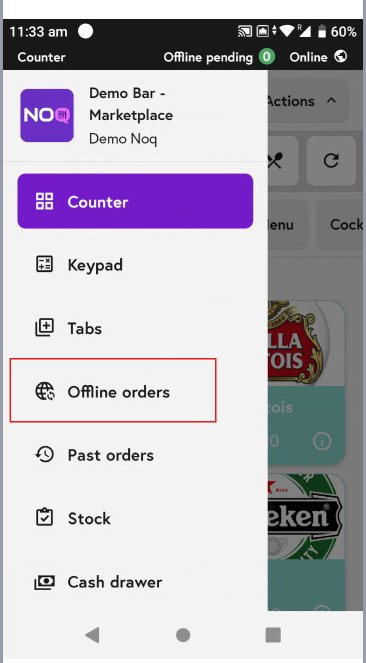
3. Click on three horizontal bars from the top of the screen and select offline orders.
4. Choose the date for which you would like to see Offline Orders and click 'ok'.
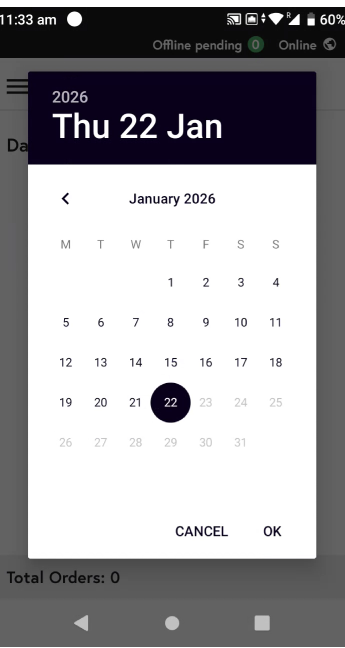
5. All your offline orders for the selected date will appear on the screen below, if available.

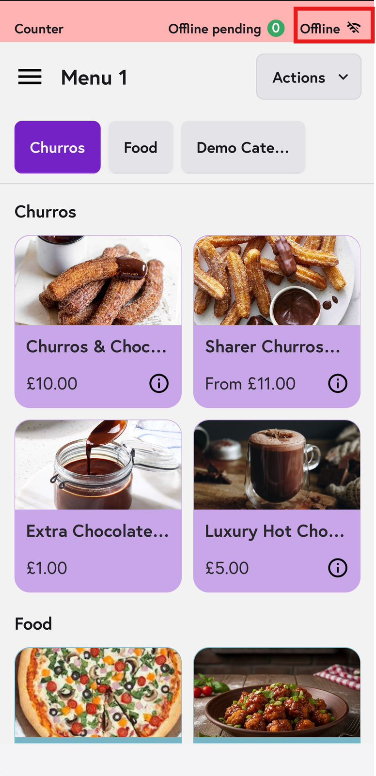
6. You can see on the top few things are visible
- Counter - It indicates that you are currently in counter ordering mode.
- Offline Pending with 0 - It means there are currently no offline orders waiting to sync.
- Offline Pending with number - If you see any number instead of “Offline Pending 0”, it means that this number of orders is still waiting to sync with the server.
- Online - It indicates that your device is connected to the internet.
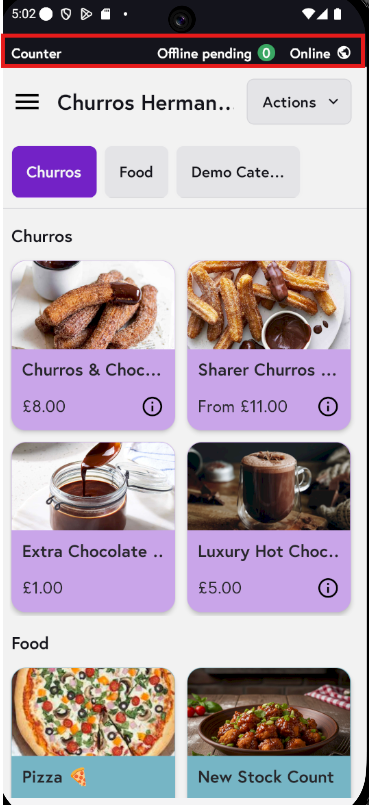
- Offline - It indicates that your device is not connected to the internet.
To learn how to process offline orders click here.