
1. Log in to the NOQ Portal.
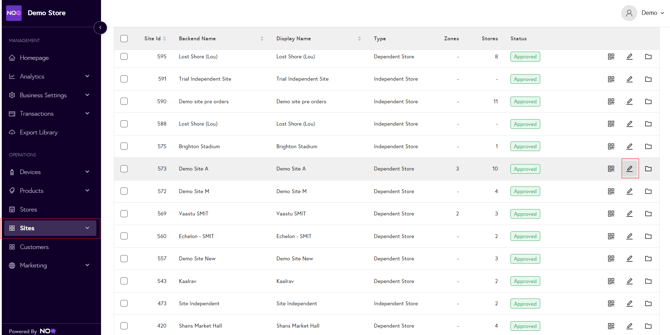
2. From the sidebar, go to Sites > Own Sites. Click on Pen🖊️ icon for the site you want to edit.
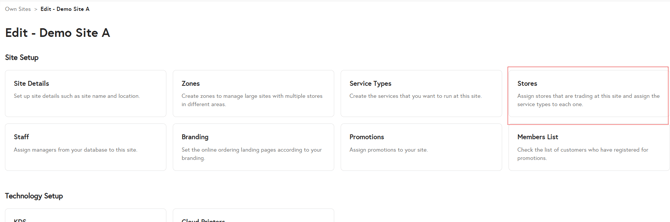
3. Click on Stores.
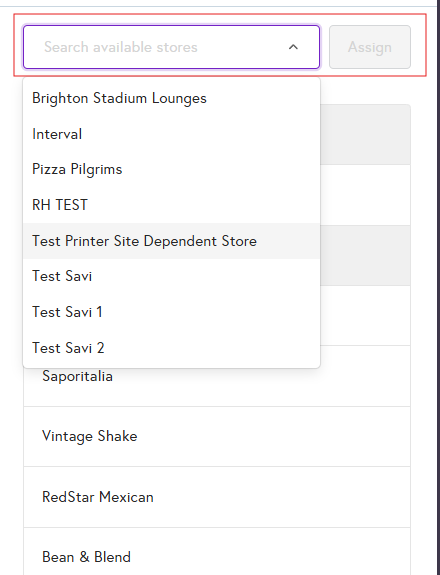
4. Click the + Assign Store button.

5. From the Select Available Store drop-down, choose the store you want to assign. Once selected, the Assign button will be enabled. Click Assign to link the store to the site.
6. The assigned store will appear at the bottom of the Assigned Stores list. For that store, toggle Enable or Disable for each service type as required, then click Save settings. You can also select zone for the assigned store from the Zone drop-down.

If you’re unable to enable any service type, use the link below: