
1. Log in to the NOQ Portal.
2. From the sidebar,go to Products > F&B > Stock Locations.

3. Click Manage Products for the stock location you want to update.

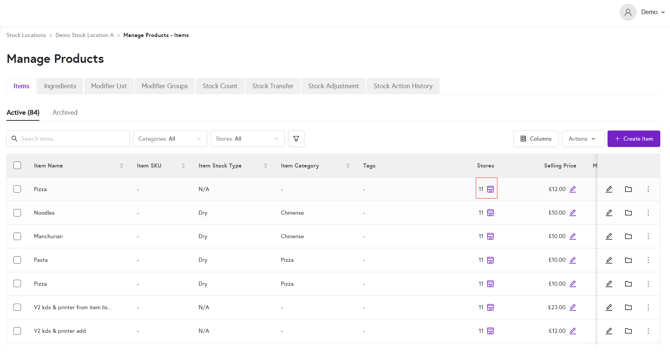
4. You will all items linked to the stock location. Click on the store 🏪icon under the Stores column.
5. From the Select Store drop-down, select all the store you want to assign item to.
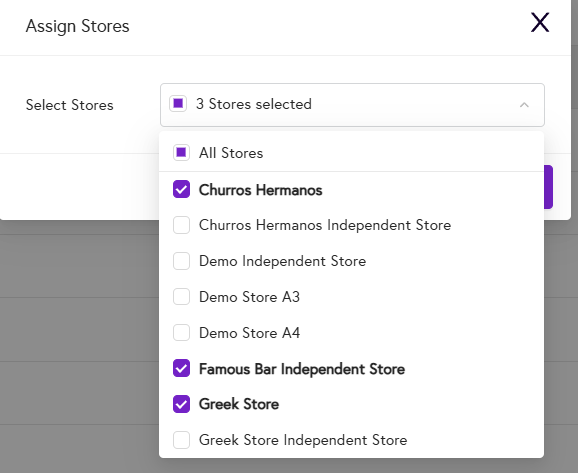
6. Click Assign to finalize the assignment.

Your item is now assigned to the selected store.
If you can’t see any items in your stock location, go to Products > F&B > Master Stock List.
- You will see items listed in the Master Stock List. Click the Pen 🖊️ icon under the Assigned Locations column.

- From the Select Locations drop-down, choose the stock location you want to assign the item to.

- Click Assign to link the item to your selected stock location..

If stock locations aren’t enabled yet, follow these steps:
-
From the sidebar, Products > F&B > Item List.
- Follow steps 4 to 6 in the guide above.
After assigning items to the store, you can now proceed to assign items to the menu.