
1. Log into the NOQ Portal.
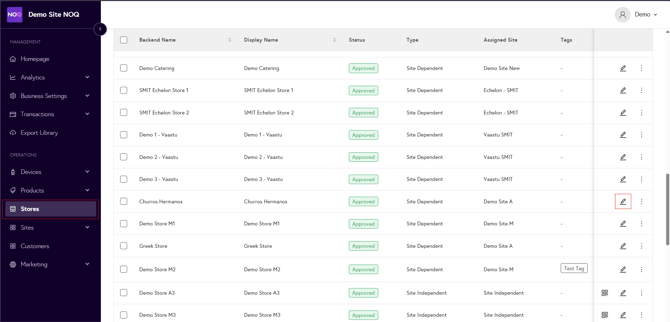
2. From the sidebar, navigate to Stores and click the Pen (🖊️) icon for the store you want to generate a service-type-specific QR code for.
3. In the store profile, click Assign Menu.

4. Here you will see all service types assigned to the store. Click the QR code dropdown to view the following options.

-
Preview : Displays a preview of the QR code for that specific service type.
-
Copy : Copies the link for that specific service type to your clipboard.
- Download : Lets you download the QR code in various resolutions and file formats, including PNG, SVG, and PDF. Select your preferred resolution and file format from the dropdown, then click Download to save the QR code.

Not seeing any service types listed? You’ll need to enable them first. Use the links below to learn how to set up and enable service types.