
1. Login into the NOQ Portal.
2. From the sidebar, navigate to Products > F&B > Menus. Click on + Create Menu.

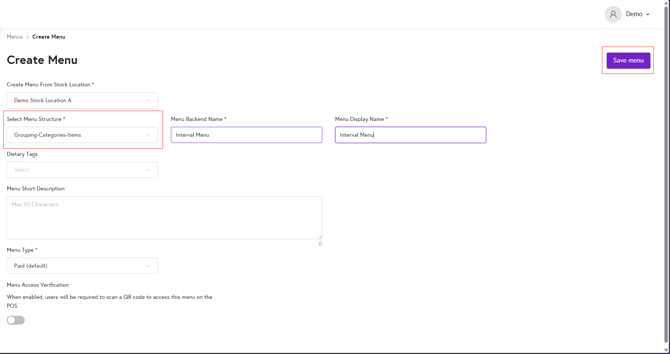
3. If stock location is enabled, use the Create Menu From Stock Location drop-down to select the relevant stock location. From the Menu Structure drop-down, select Grouping-Categories-Items. Enter the menu backend name and display name, then click Save menu to create the new menu.
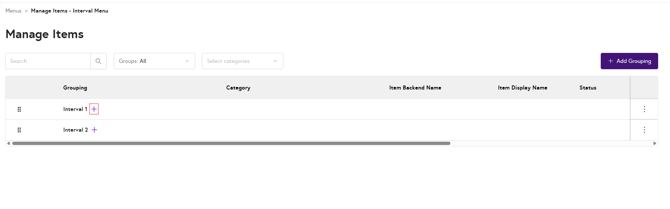
4. Open newly created menu by clicking on manage items.

5. To create new group, click on +Add Grouping.

Enter the grouping name and click Save to create the new grouping.

Repeat this process for each group you want to add.
6. Click on the + icon next to the grouping name to add a category to that grouping.
Enter the category name and click on Save to create new category.
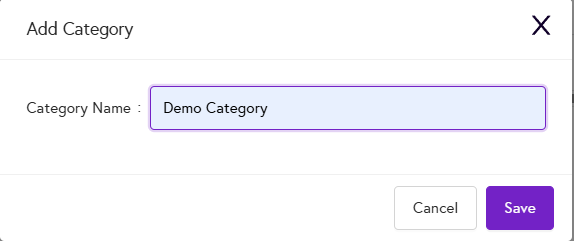
Repeat the process for each group.
7. To add items, click on + icon next to the category name to add items to that category.
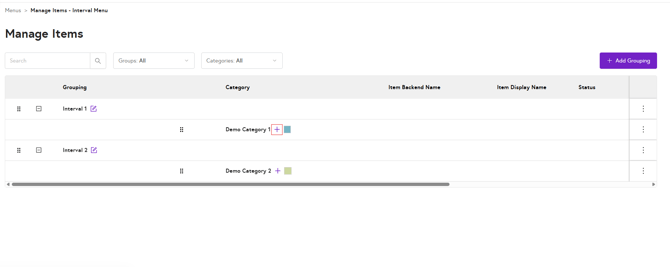
Add the required items as usual, then click Save to assign them to the category. Repeat the same process for other the grouping as well.
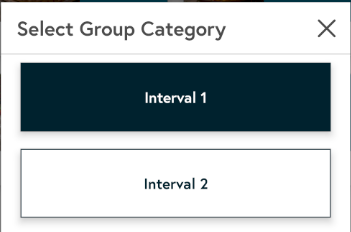
After assigning the menu to the store service type, the menu will display like this in the EPOS app. Use the Group selection drop-down to switch between different groupings.

Click on the other group to see its categories and items.
Not sure how to assign items to category? Click on the Link below to learn how to assign items to the Menu.
Don't know how to assign menus to the service type? Click on the Link below to learn how to assign menus to the service type.