
Step 1: Downloading the NOQ Insights App
- Go to the App Store (iOS) or Google Play Store (Android) on your device.
- Search for NOQ Insights and download the app.
- Open the app and log in with your credentials. If you don’t have login information, contact NOQ support for assistance.
Step 2: Access the Report Section
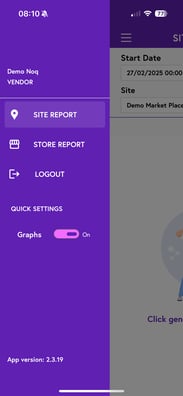
- Once logged in, tap the Three Lines menu icon in the top left.
- Tap Site Report to view data for a specific site.
Step 3: Set the Filters for Your Report.
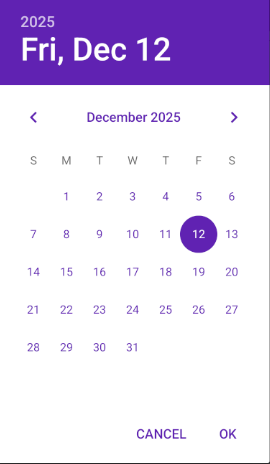
- Select your desired ‘Start date, Start time’ and ‘End date, End time’ for the report period.'.
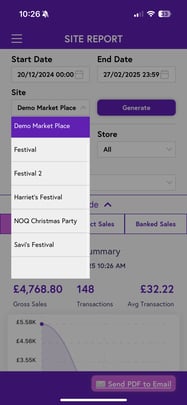
- Use the 'Site' dropdown to select the relevant site, then press 'Generate'.
- Once the report is generated, you’ll see Zones (if configured), Stores and Devices. Devices refer to the serial numbers of the payment terminals in use. If you change any of the filters above, the report will automatically refresh based on your new selections.
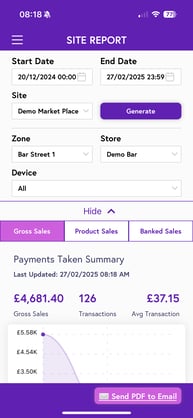
Use the Hide option to expand your screen view for easier navigation if needed. 💁♀️
Step 4: Understanding the Report Categories
After generating the report, you can switch between these categories by selecting the tab beneath your filters to access different types of sales insights:
-
Gross Sales: Overview of total sales, showing tables of key metrics: a summary of the product, net and gross sales, service types, and the average transaction amount, service type, employees and tax summary. Including a graph and summary figures for a quick assessment of sales performance.
-
Product Sales: Detailed breakdown of product sales, including total items sold, item quantities, modifiers, and service type summaries. This helps identify product popularity and the modifiers impacting sales.
-
Banked Sales: Total amount banked after fees, showing the net sales ready for payout. This includes a summary of banked sales, owned stores' banked sales, merchant service charges, and payment type breakdowns for financial reconciliation.
Step 5: Sending the Report via Email
- To share the report, tap Send PDF to Email.
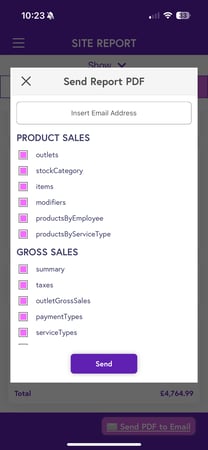
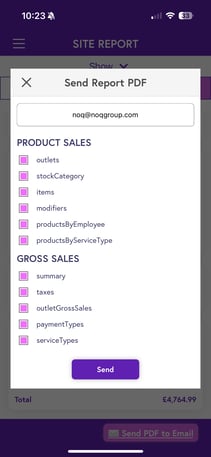
- Enter the recipient's email, select the values to include, and click Send to send the PDF report directly.
Click the links below for more guides related to the NOQ Insights app.
🚨Note!🚨If you haven't used the app in 24 hours, a pop up will display asking you to refresh the app. Please click Refresh to reload your data.