
Creating stock locations helps you track inventory accurately across different places.
1. Login into the NOQ Portal.
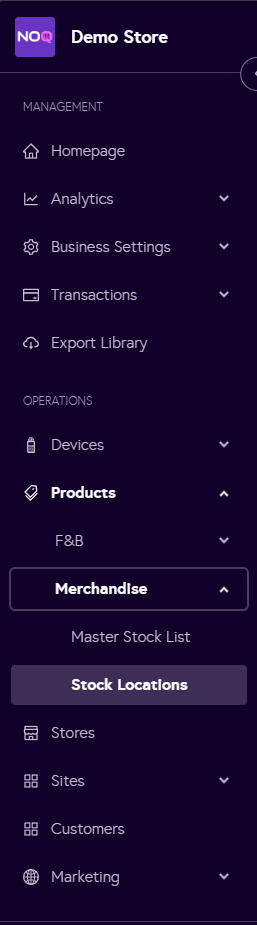
2. From the sidebar navigate to Products > Merchandise > Stock Location.
3. Click on + Create Stock Location.

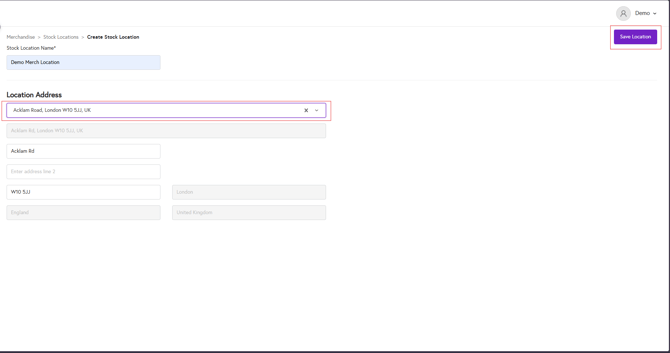
4.Enter the name of the stock location. Then, in the first search bar under Location Address, enter the postal code for the stock location. The system will automatically populate some address fields. You can complete the remaining details or leave them as they are. Click Save location to create the new stock location.
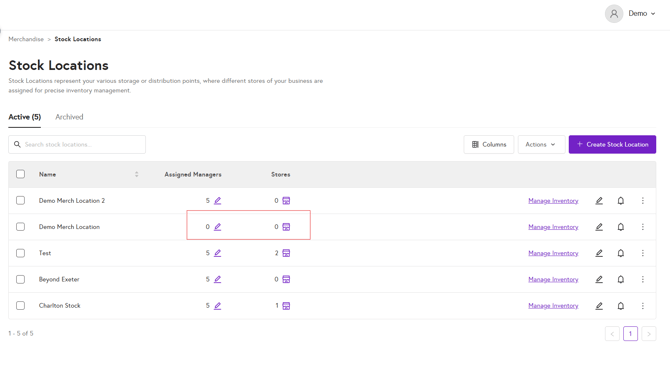
5. After saving stock location, you will created stock location name on the top. By clicking on Pen 🖊️ icon under Assigned Manager column, you can assign Manager to the stock location.
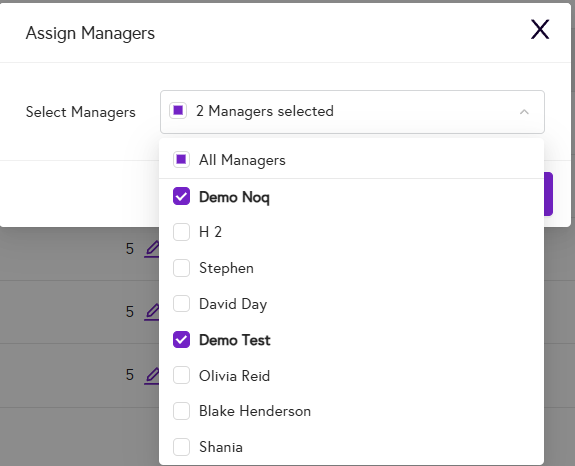
If by default any manager is assigned, you can remove them and add new managers from the drop down. After selecting manager, click on Assign to assign manager to the stock location.
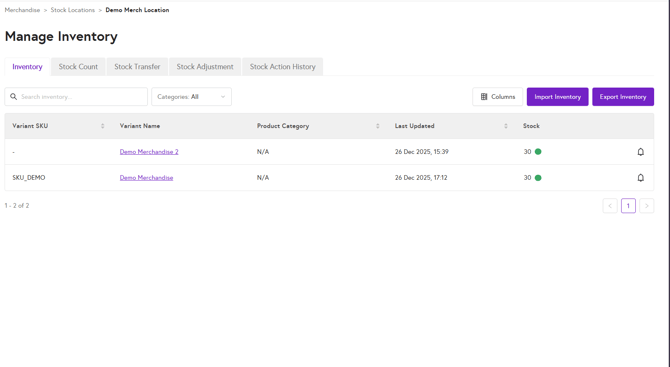
6. Clicking on Manage Inventory lets you view all items assigned to that stock location.

From here, you can perform Stock Count, Stock Transfer, Stock Adjustment, view Stock Transfer History, and Import/Export the current inventory.
Now you can see these guides to move forward.