
1. Login to the NOQ Portal
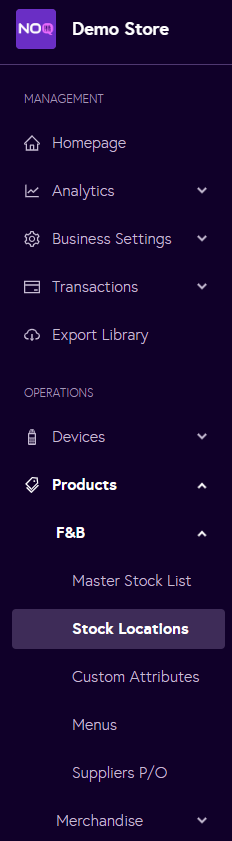
2. Navigate to Products -> F&B -> Stock Location from the left navigation panel.
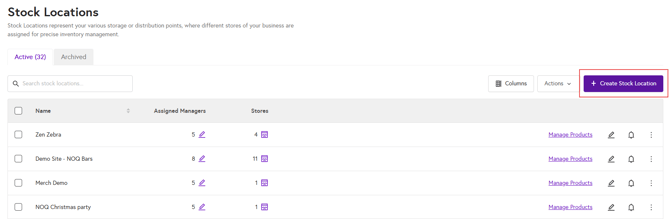
3. Click on Create Stock Location on the right side.
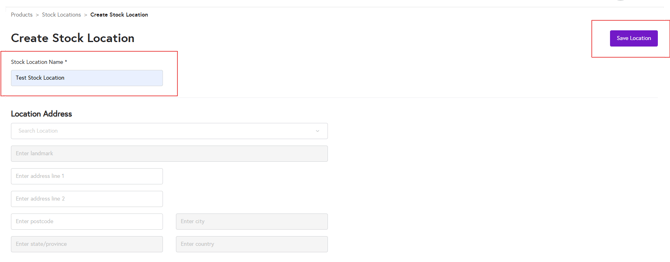
4. Enter the Stock Location Name (required), Address(option) and click on Save Location. Your Stock Location is created.
5. Once your stock location is created, click on Manage Products.
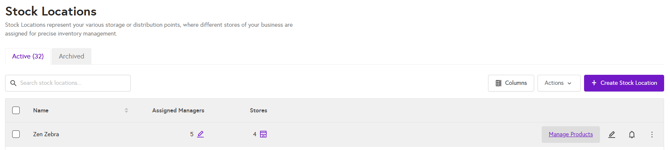
6. Under Manage Products you can do the following:
- Create Item – Under Items tab when you click on Create Item button and complete all required fields, the item will be created. For detailed guidance on how to fill in each field, refer to point 3 in this guide.
- Create Ingredient - Under Ingredients tab when you click on Create Ingredient button and complete all required fields, the ingredient will be created. For detailed guidance on how to fill in each field, refer to point 4 of this guide.
- Create Modifier List - Under the Modifier List tab, you can create a modifier list. For a step-by-step guide on how to set this up, follow this guide.
- Create Modifier Group - Under the Modifiers Group tab, you can create a modifiers group. For a step-by-step guide on how to set this up, follow this guide.
- Create & Approve Stock Count - To learn how to create and approve stock counts for your products, please follow this guide.
- Create stock transfer - To learn how to create stock transfer for your products, please follow this guide.
- Create stock adjustment - To learn how to create stock transfer for your products, please follow, this guide.
- View stock action history - To learn how to view the stock action history, please follow, this guide.
Note: If you click the pencil icon to edit an item/ingredient within a stock location and see some fields greyed out, you’ll need to update those fields in the Master Stock List.